

The Threshold timeline organizes all your anomalies, alerts and manually-added notes in chronological order. This is helpful for your own reference, as well as if Stripe requests information leading up to an account review. Your timeline is accessible by opening the 'Timeline' tab in the Threshold app from the Stripe dashboard.
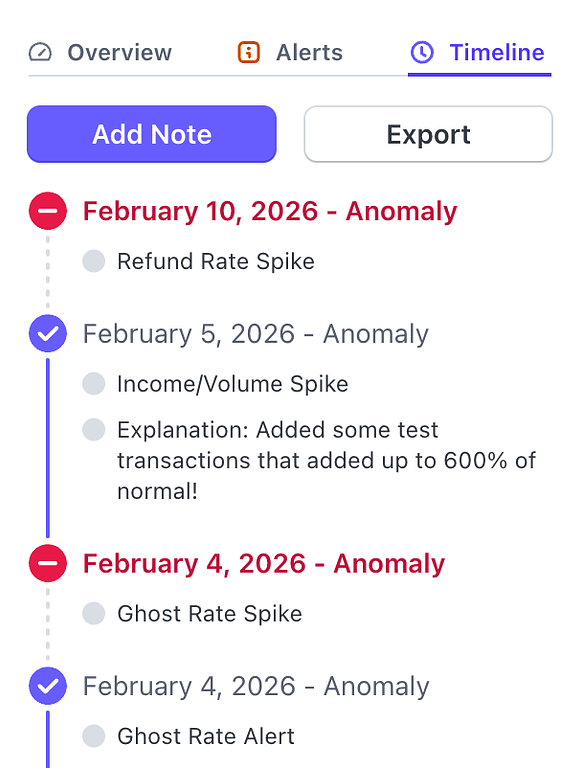 The Timeline tab
All anomalies are automatically recorded on your Threshold Timeline. As you add explanations for your anomalies, they will be marked as 'explained' and will no longer show as incomplete in your timeline. You can click on a timeline entry's title to open the details view for that entry.
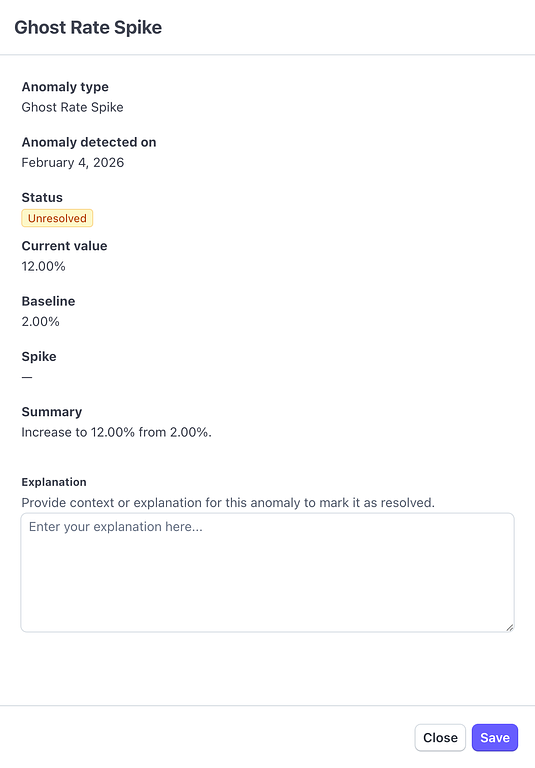 Anomaly Details with no explanation
As you add explanations to your active alerts, your timeline of events will become more useful.
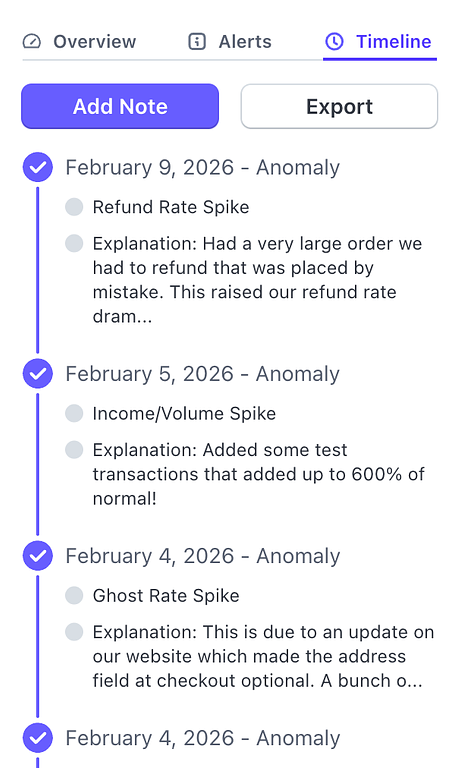 Clear timeline
The Timeline tab
All anomalies are automatically recorded on your Threshold Timeline. As you add explanations for your anomalies, they will be marked as 'explained' and will no longer show as incomplete in your timeline. You can click on a timeline entry's title to open the details view for that entry.
Anomaly Details with no explanation
As you add explanations to your active alerts, your timeline of events will become more useful.
Clear timeline
Manual Notes
You can add notes to your timeline manually. This allows you paint a very clear picture of the events leading up to anomalies or what was done afterward to address an anomaly. Click the 'Add Note' button at the top of the timeline to add a note:
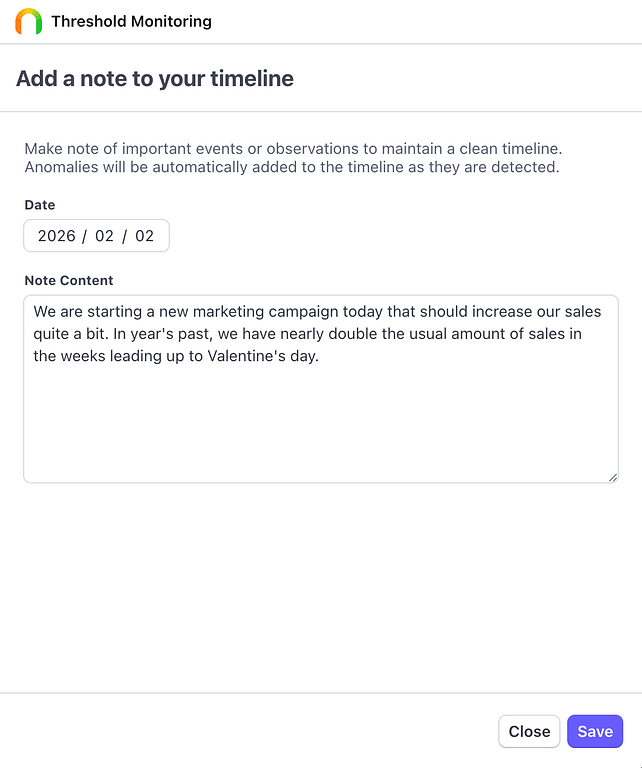 Timeline manual note form
Manual notes appear within the chronological timeline view.
Timeline manual note form
Manual notes appear within the chronological timeline view.
Timeline Export
Threshold subscribers have access to export their timeline (or a segment of their timeline) to CSV or PDF. Every export contains any anomalies or notes created during that time, as well as periodic account health metrics to help explain the data.
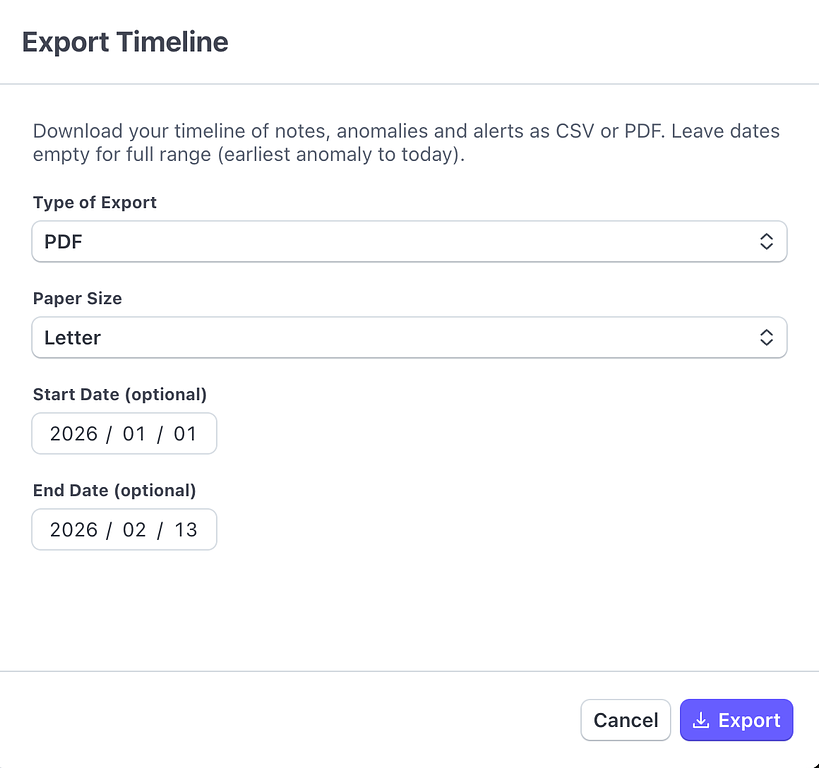 Timeline export form
An exported PDF timeline looks something like this:
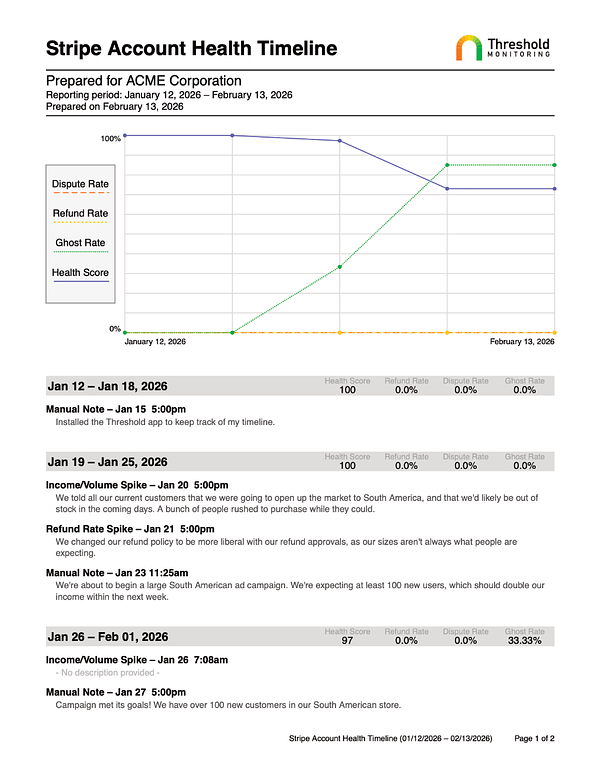 Exported PDF timeline
This is appropriate to submit to Stripe as evidence for anomalies or to review within your own company to gain insights and to inform business decisions.
Timeline export form
An exported PDF timeline looks something like this:
Exported PDF timeline
This is appropriate to submit to Stripe as evidence for anomalies or to review within your own company to gain insights and to inform business decisions.