
The Threshold Monitoring app is very customizable. To adjust the settings of the app, visit the App Settings page in Stripe by opening the Threshold app and clicking 'View app settings' from the dropdown menu. Or you can visit this link to the Threshold App Settings page in Stripe.
 Threshold settings
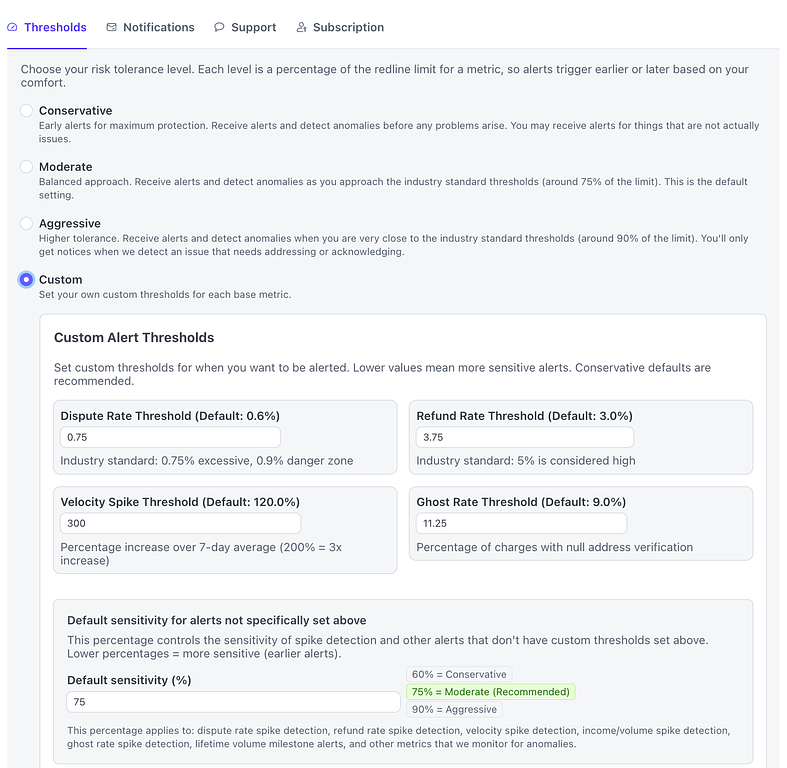
These settings control when Threshold will call certain events to your attention. Though the default of 'Moderate' should be sufficient for most, you can select 'Conservative' which will send alerts earlier, or 'Aggressive' which will wait to send alerts until you are very close to the published recommended limits for each metric.
If you are a subscriber, you can also select 'Custom' and tune the core metric thresholds to your liking, as well as add a scalar percentage for all the other metrics we monitor. If you set the 'Default Sensitivity' value to '50', we will send out alerts when a metric reaches 50% of the 'danger' value. If you set the 'Default Sensitivity' to '90' you won't receive an alert for a metric until that metric is at 90% of the danger. value.
Threshold settings
These settings control when Threshold will call certain events to your attention. Though the default of 'Moderate' should be sufficient for most, you can select 'Conservative' which will send alerts earlier, or 'Aggressive' which will wait to send alerts until you are very close to the published recommended limits for each metric.
If you are a subscriber, you can also select 'Custom' and tune the core metric thresholds to your liking, as well as add a scalar percentage for all the other metrics we monitor. If you set the 'Default Sensitivity' value to '50', we will send out alerts when a metric reaches 50% of the 'danger' value. If you set the 'Default Sensitivity' to '90' you won't receive an alert for a metric until that metric is at 90% of the danger. value.