
When the Threshold app detects an anomaly you will receive an alert indicating what metric is out of the ordinary. You can view all your alerts by visiting the 'Alerts' tab in the Threshold Monitoring app from the Stripe dashboard.
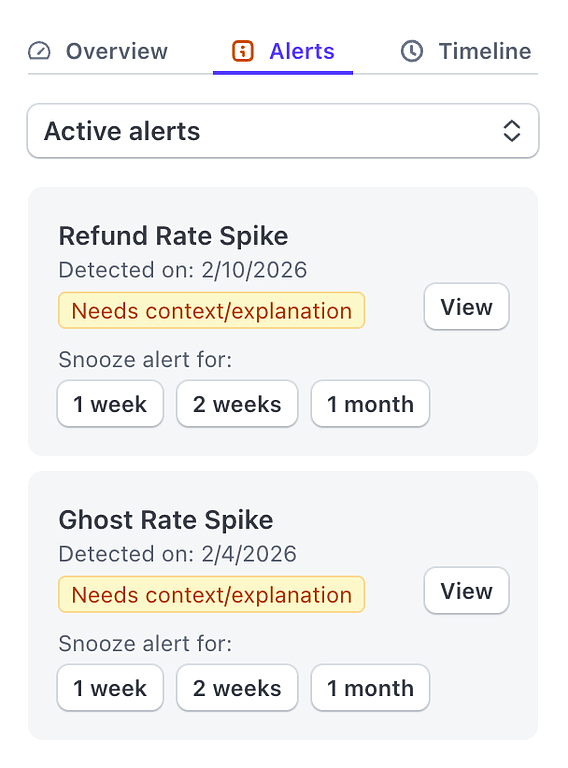 The Alerts tab
The Alerts tab is where you can manage and add context to any anomalies that Threshold detects. The icon in the tab bar will turn red if there are any actions you need to take.
Active Alerts
Active alerts are anomalies that were detected by Threshold that don't yet have a human-provided explanation for the cause. For instance, a Refund Spike anomaly might have been because of an inaccurate description. This explanation should be added to the anomaly, as well as what was done to remedy the situation. Adding an explanation marks the anomaly as 'explained'. If you aren't sure what caused a particular anomaly, you can snooze the alert while you investigate the cause - but it will be back to remind you about adding the context!
Explained Alerts
If you change the filter to 'Explained' you will only see anomaly alerts that already have business context provided. These are for your reference so you can review the fixes that worked or didn't work in previous anomalies.
Snoozed Alerts
Any alerts that are 'Snoozed' appear in the 'Snoozed' tab. Once you discover the reason for a snoozed anomaly, you can find it there to add context and notes about what caused it. It will then be marked as 'explained'.
The Alerts tab
The Alerts tab is where you can manage and add context to any anomalies that Threshold detects. The icon in the tab bar will turn red if there are any actions you need to take.
Active Alerts
Active alerts are anomalies that were detected by Threshold that don't yet have a human-provided explanation for the cause. For instance, a Refund Spike anomaly might have been because of an inaccurate description. This explanation should be added to the anomaly, as well as what was done to remedy the situation. Adding an explanation marks the anomaly as 'explained'. If you aren't sure what caused a particular anomaly, you can snooze the alert while you investigate the cause - but it will be back to remind you about adding the context!
Explained Alerts
If you change the filter to 'Explained' you will only see anomaly alerts that already have business context provided. These are for your reference so you can review the fixes that worked or didn't work in previous anomalies.
Snoozed Alerts
Any alerts that are 'Snoozed' appear in the 'Snoozed' tab. Once you discover the reason for a snoozed anomaly, you can find it there to add context and notes about what caused it. It will then be marked as 'explained'.
Resolving Alerts
Clicking the 'View' button on an alert will open the alert details view:
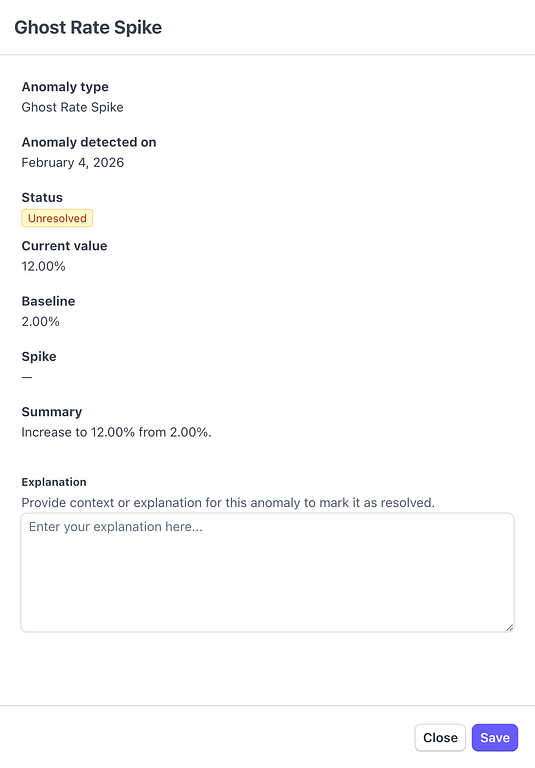 Anomaly Details view
To address your active alerts, add an explanation as to what you believe caused this anomaly and what you are doing to address it. This explanation will be helpful if you ever need to provide evidence to Stripe about these events. Once you add an explanation and click 'Save', the alert will be moved from 'Active' to 'Explained'. You can snooze an alert while you do some research into the anomaly.
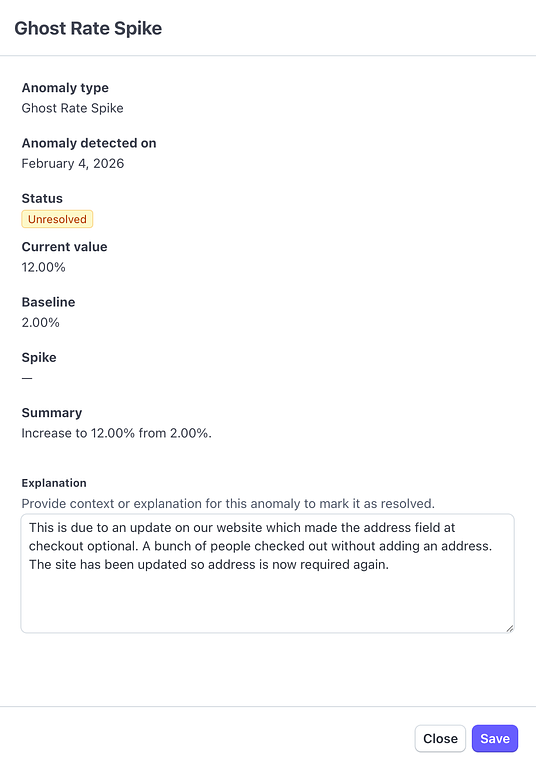 Anomaly Details with explanation
There are many events that can cause an anomaly - dispute spike, ghost transaction spike, or an income spike just to name a few. Subscribers can sign up for real-time email alerts that are delivered when an anomaly is detected which contains common reasons for the anomaly, as well as specific actions you can take to address the anomaly before it leads to bigger issues.
All anomaly alerts are recorded in your Threshold Timeline so you can review them chronologically. To learn more about the timeline please read our Overview - Timeline guide which explains this powerful feature.